Your ultimate guide to dealing with PII in Google Analytics
- Published
- 29 September 2026
- Read time
- 7 minute read
Worried you might be collecting PII? Found some potentially sensitive information in your GA and aren’t sure what to do? Don’t worry this guide is here to help, to answer all your questions and give you a solid understanding of what PII is and what you need to do about it.
 Lola Watkins
PII or personally identifiable information is any information that can be used to identify a person. This can be something that directly identifies them like an email or phone number. Or, it can be something that, when combined with other data, let’s you piece together someone’s identity like date of birth or gender, these are known as quasi-identifiers.
Examples of direct identifiers:
Phone number
Email address
Credit or debit card information
Name
Address
Post Code
Examples of quasi-identifiers:
Place of birth
Date of birth
Age
Race
Religion
Gender
But GA4 has a built in service (Google Signals) that collects demographic data like age and gender?
While direct identifiers should never be stored in GA4, you need to have a large enough of a combination of quasi-identifiers for it to become an issue.
You would have to have quite a lot of pseudo-identifiers to actually be able to identify someone and the information collected through Google Signals is already in Google’s hands and users have consented to have it shared. Google made a recent update to Google Signals to further integrate it with consent mode, as of 15 July 2026, the Google Signals data will automatically only be used in the platforms which the user has consented to, analytics_storage for GA & ad_storage for Google Ads. You can find the official documentation on this update here.
Ultimately, you are relatively safe to collect this type of data, the danger of quasi-identifiers amounting to PII is very low but be mindful to not collect more than you need.
2.What are the dangers of collecting PII?
The collection of PII has the potential to cause real harm to your users but it also poses serious risks to your business.
Dangers to users
For the people whose personal data is collected, the main risk is in that of data breaches, with their information stolen, those people become at risk of things like phishing, fraud and identity theft.
Dangers to your business
The collection of PII is not legal, General Data Protection Regulation (GDPR) and the California Consumer Privacy Act (CCPA) both include regulations that prohibit it. If you are found to not be adhering to these regulations, you can incur serious fines.
There is also the matter of your business’ reputation, if people know you have illegally stored their personal information, they are likely to lose trust in you and take their business elsewhere.
Sending PII to GA4, even if not intentional, is also against the Google Analytics Terms of Use which, if you breach, gives Google the right to shut your GA4 account down.
How can PII end up in GA4?
There are two main places you are likely to find PII: in your custom dimensions or in the query string. In most cases, it is likely to be caused from somewhere a user has input PII, like typing their email into a field in a form.
3.How to prevent PII
In order to avoid sending PII to GA4 be mindful of what you are tracking around areas where you collect PII on your website, such as forms that require a name or email address. In terms of your custom dimensions, you have a lot of control over what you are sending to GA4 so, as long as you are careful when setting them up, you shouldn’t run into any issues here.
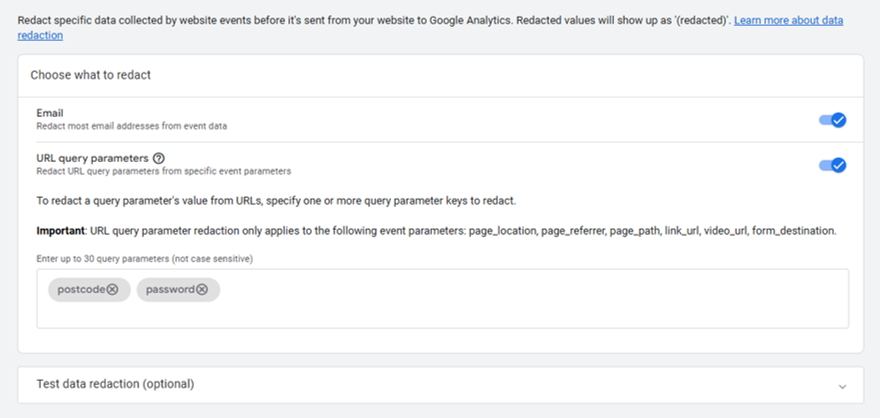
You can also use GA4’s built in data redaction feature which can redact different query parameters as well as email addresses. This is super useful as query parameters and particularly email addresses are the most common PII issue I come across. Fresh Egg recommends that you keep the email redaction setting here toggled on and utilise the query parameter redaction once you know that certain query parameters are going to be a problem. Ultimately it would be best practice to not have any PII in the query string in the first place, so if you spot some, talk to your developers to see if this can be prevented at the source.
How to enable data redaction settings
In GA4, navigate to Admin > Property Settings > Data collection and modification > Data streams.
Click into your data stream and under the ‘Events’ section go to ‘Redact data’.
Toggle the switches on
To enable email redaction:
simply toggle the switch on.
To enable redaction for a specific query parameter:
toggle the switch on
type out the key for the parameter(s) you want to redact and hit enter.
If you have multiple data streams you will need to do this in each stream, though this feature is only available for web data streams.
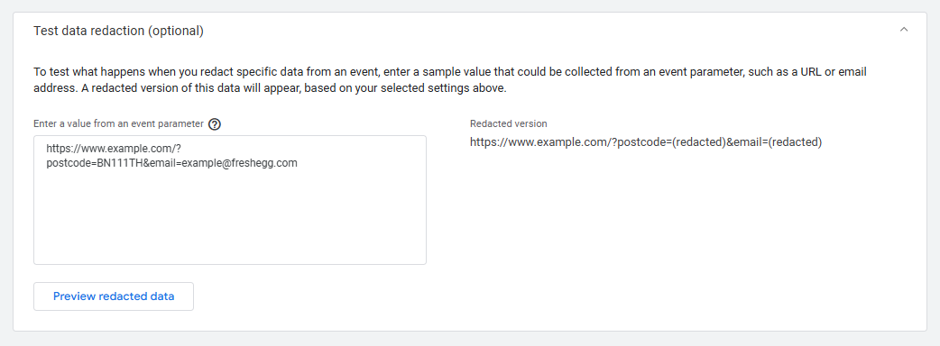
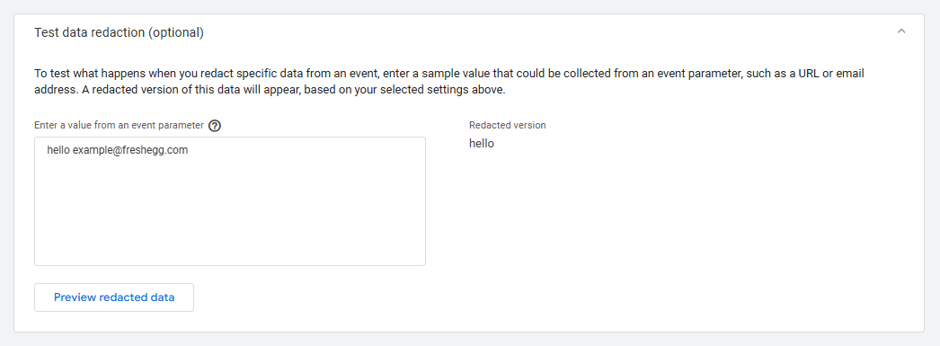
In order to see how these settings work we can look at the ‘Test data redaction’ function. Simply input an example URL or other parameter and hit ‘Preview redacted data’ and it will show you how data coming in will look with your current redaction settings. You can see below that any redacted query parameters will show ‘(redacted)’ in place of the email / postcode / etc., and emails showing up in a plain text parameter are simply removed.
4.How to check for PII
Create a new blank explore report in GA4. Add in the dimensions you want to check for PII and their respective metrics, like ‘Page path + query string’ and ‘Views’. You can then add filters to search for the PII, look for values of ‘Page path + query string’ that contain an @ symbol or a particular query parameter. Hopefully when you add this filter you will see the message ‘No data for this combination of segments, values, filters and date range. Try editing the variables or settings or remove them.’ As this means there is not PII that matches what you have searched for.
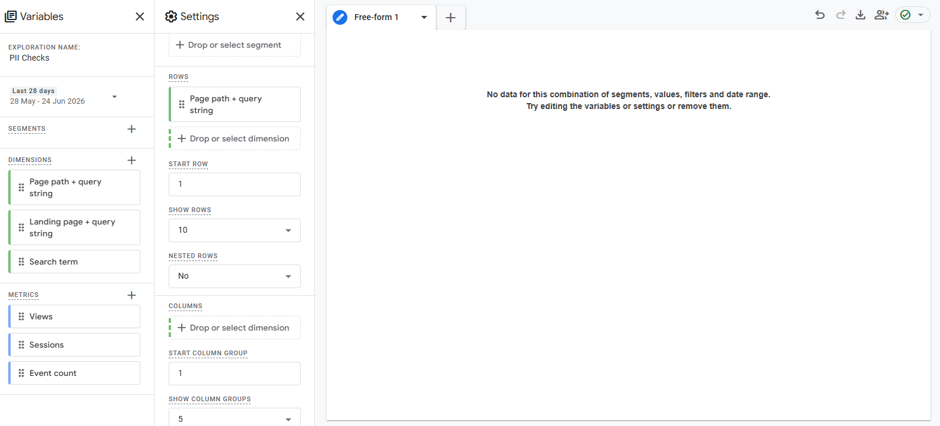
The most efficient way to have this set up is to write a RegEx expression that checks for all sorts of possible PII at once.
Here is an example of some RegEx that we use to find PII:
.*(\@(.*)\.|\%40(.*)\.|address\=|pass(word)?\=|postcode\=|zip(code)?\=|(tele)?phone\=|tel\=|name\=).*
It searches for anything that contains something fits the format of ‘[text]@[text].’ or ‘[text]%40[text].’ which should highlight any email addresses even if the @ gets encoded in the URL as %40. It will also highlight URLs that contain various query parameters like ‘password=’ or ‘postcode=’. If you want to add your own query parameter to check add ‘|[your query parameter here]\=’ just before the last closing bracket.
5.What to do if you find PII
Agencies will typically have agreed upon protocols for PII which will usually involve informing the client within one working day of finding the PII and providing them with guidance on how to deal with it. As processors of data, we are obliged to inform our clients immediately if we become aware of a data protection breach.
Once you are aware that you are collecting PII the first priority should be to prevent collecting any more, this can be done via the built in data redaction settings as explained above. You will also want to stop this issue at the source, if the PII was found in the query string this will likely require reaching out to your developers. Then you want to make sure the PII is removed from GA, as the collection of PII within Google Analytics is not only prohibited within Google's Terms of Service, but it also constitutes a data protection breach.
How to delete PII
You can delete PII using the GA4 data deletion requests as long as you have at least editor level access. These allow you to redact the data from the parameters where they have been captured.
The data deletion requests can be found under Admin > Property settings > Data collection and modification > Data deletion requests.
There are various types of data deletion requests that you can make that allow you to delete data at various levels of specificity. Usually you’ll want to select ‘delete selected parameters on all events’ or ‘delete selected registered parameters on selected events’ as these options will allow you the precision to delete only the data that contains PII.
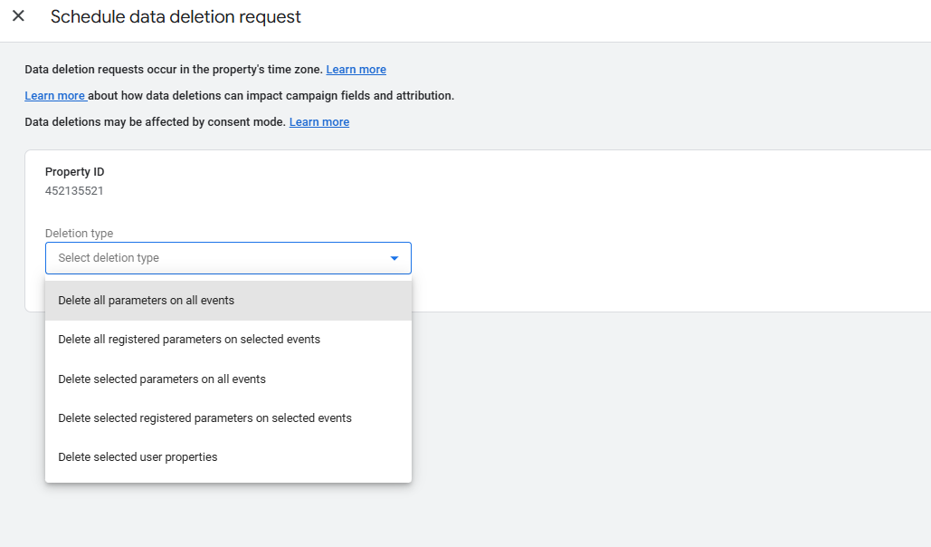
Step-by-step process:
Select your desired deletion type.
Not all the below steps will be applicable to every deletion type so just complete the steps required for your type.
Click the calendar icon to select a start date and then an end date.
If deleting from selected events, type out and select from the drop down the events you wish to delete data from.
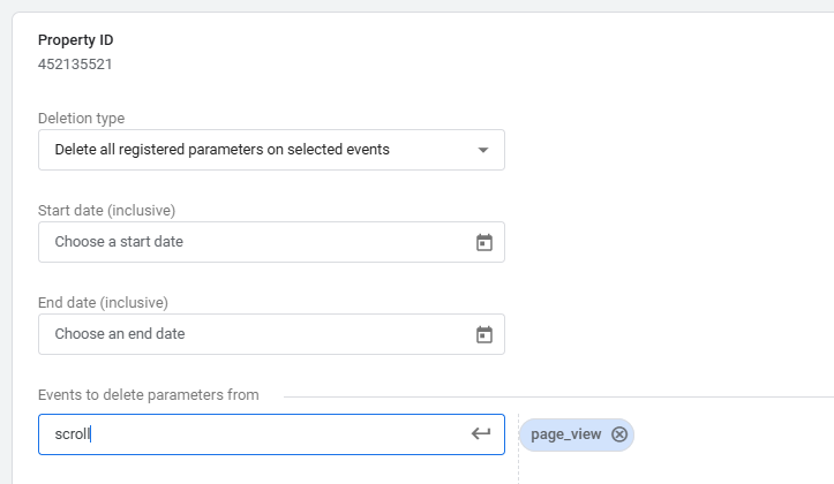
If deleting from selected parameters, type out and select from the drop down the parameters you wish to delete data from.
If deleting from selected parameters, you also have the option of deleting only parameters that contain particular text.
Simply make sure you have the checkbox ticked and type the text you want to target and delete in the box.
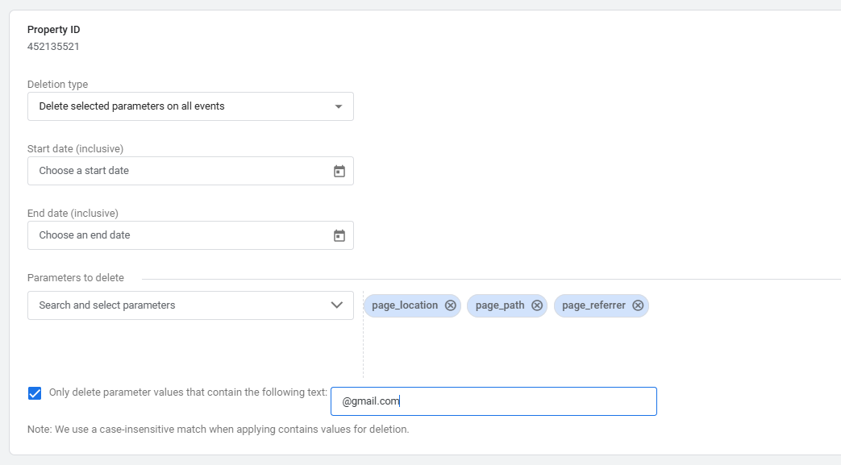
Then just hit ‘Schedule request’.
A Common Example of PII Deletion
Let’s run through an example. Let’s say you found some names in the query string in the format of /page/?first_name=jane&last_name=doe. We would want to create a data deletion request to ‘delete selected parameters on all events’, we will select the date range for where we’ve found the PII, then select all page parameters, page_location, page_path and page_referrer. Then we will tick the box to ‘Only delete parameter values that contain the following text:’ and enter one of the query parameters into the text box to target just the pages with the PII. Then we just hit ‘Schedule request’ and then ‘Confirm deletion’ and the deletion request will be submitted.
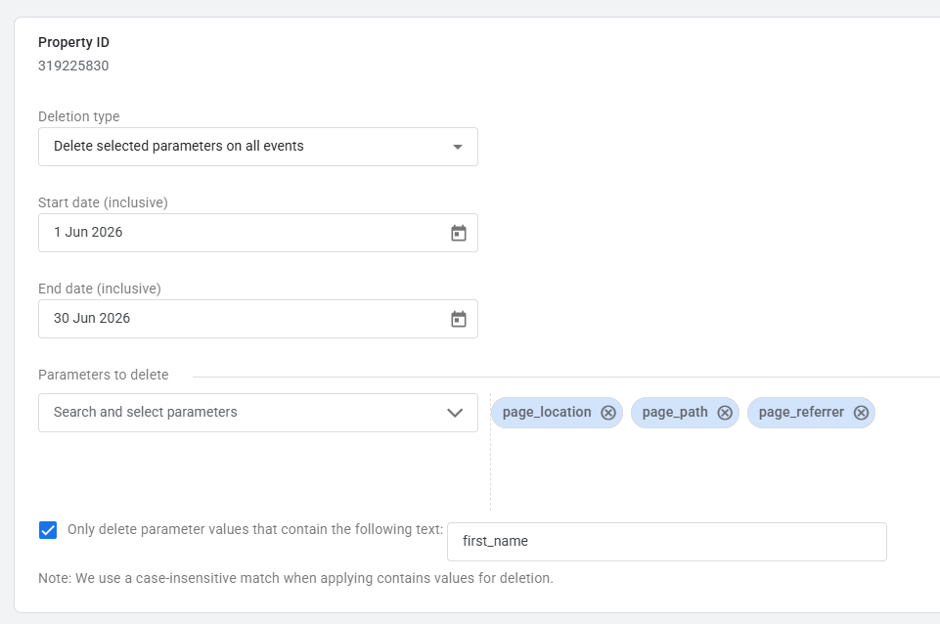
Once you’ve submitted the data deletion request it will enter a grace period where you can preview the deletion before it becomes permanent. Go back into your explore report and ensure you can no longer see the PII and that nothing has been missed. You should instead see values of ‘(data deleted)’ in the place where the PII will be removed.
The grace period is 7 days from the time it was created. Within this window anyone with at least editor level access will be able to cancel the request if needed. After that the status of the deletion request will change to ‘Preview active, Deletion in progress’ and it will take between 7 and 63 days to be processed and finally deleted.
Everyone with at least editor access will also be sent an email alerting them to the data deletion request, they will also be emailed again when the deletion begins and when it is completed.
6.What to do about PII in BigQuery
If you export your GA4 data to BigQuery, you must take steps to prevent PII from reaching both your raw datasets and downstream reports. While Google treats raw GA4 tables as an append-only event log, data can be directly deleted or scrubbed from BigQuery using standard SQL statements or by dropping daily sharded tables. In addition to cleaning the raw export, you should update downstream transformation queries to filter out sensitive parameters before reporting. Storing unredacted PII in BigQuery creates significant legal and security liability, even if it is never surfaced in a user-facing dashboard, so static storage must be remediated alongside your visual reports.
It is important to adhere to data protection regulations and to be responsible with your users’ data. We need to ensure that we do not to store PII in Google Analytics, that checks are carried out regularly and data deletion requests made when required. I hope this guide has given you the confidence and understanding that you need to deal with any PII that you may come across.
Need help with data?
If you need any further support around PII, making sure your analytics set up is compliant with data protection regulations or anything else to do with data analytics, please don’t hesitate to reach out to the Fresh Egg team.